Page 4 — Sessions
The Sessions panel shows all your past AI conversations. It opens as an overlay from the sidebar — click the chat bubble icon in the left sidebar to open it from anywhere in the app.
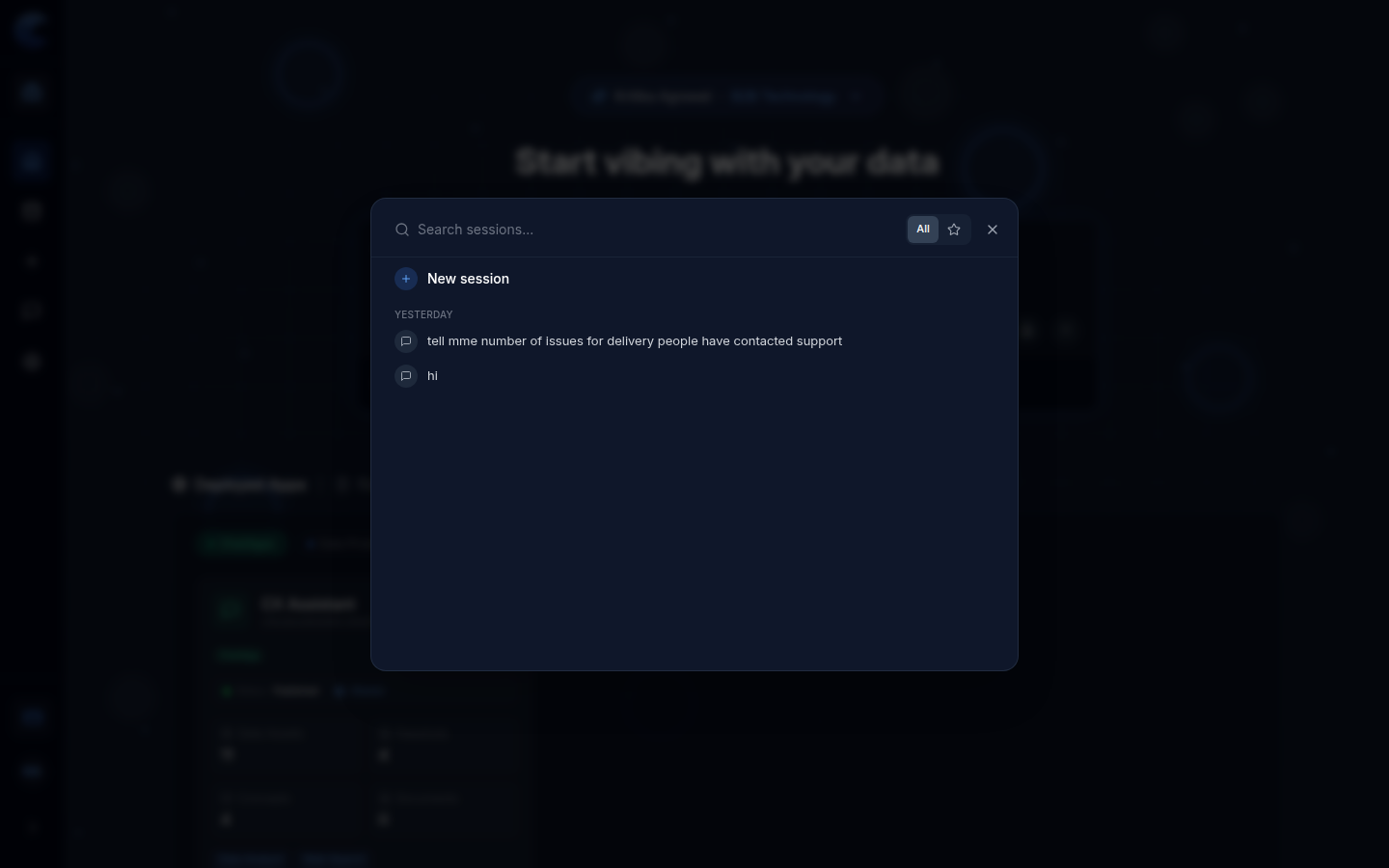
Opening Sessions
Click the chat bubble icon in the left sidebar. The Sessions panel slides open as a modal overlay on top of the current page.
Sessions Panel Layout
The panel contains:
| Element | Description |
|---|---|
| Search bar | Search sessions by keyword — type to filter your conversation history |
| All button | Shows all sessions (default view) |
| ★ Starred button | Shows only sessions you have starred/favourited |
| ✕ Close | Closes the sessions panel |
| + New session | Start a fresh chat session immediately |
| Date groupings | Sessions are grouped by date (e.g. Yesterday, Last week) |
| Session rows | Each row shows the opening message of that conversation |
Starting a New Session from the Panel
Click + New session at the top of the panel to start a brand new conversation. This is the same as clicking the + icon in the sidebar directly.
Opening a Past Session
Click any session row to resume that conversation. The session will open and you can continue asking questions right where you left off.
Searching Sessions
Type in the Search sessions... box to filter your history by keyword. The list updates instantly as you type — useful for finding a specific analysis you ran previously.
Renaming Sessions with AI
Intugle provides an intelligent way to rename your sessions using AI-generated suggestions.
How to Rename a Session
- Hover over any session in the Sessions panel
- Click the Rename button that appears on the right side
- The session name becomes editable in a text field with AI assistance options
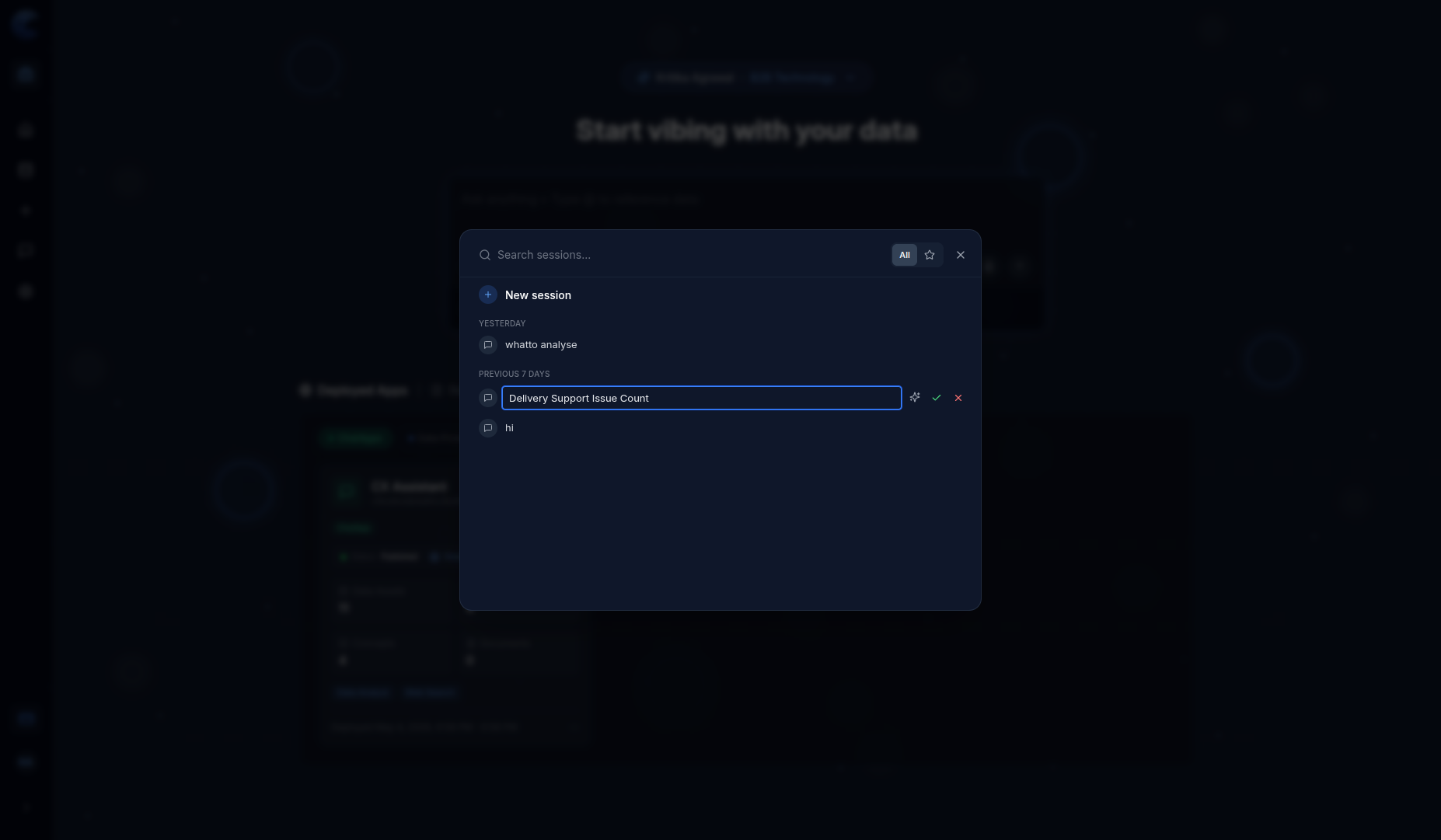
Suggest Name with AI
After clicking Rename, you'll see the session name in an editable text field with three icons on the right:
| Icon | Action |
|---|---|
| ✨ Sparkle icon | Click to let AI suggest a descriptive name based on the session content |
| ✓ Checkmark | Save/confirm the new name |
| ✕ X icon | Cancel editing and keep the original name |
The Suggest Name with AI feature analyzes your conversation and generates a meaningful, descriptive name — saving you time and keeping your sessions organized.
Tips
- Sessions are workspace-specific — switching workspaces shows only that workspace's sessions
- Every question you ask in Intugle is automatically saved as a session
- Use the ★ star filter to quickly access your most important sessions
- Use Suggest Name with AI to automatically generate descriptive session names