Page 3 — New Session
Clicking the + (New Session) button in the sidebar starts a fresh AI chat session. This is the fastest way to begin a new conversation with your data without going back to the Homepage first.
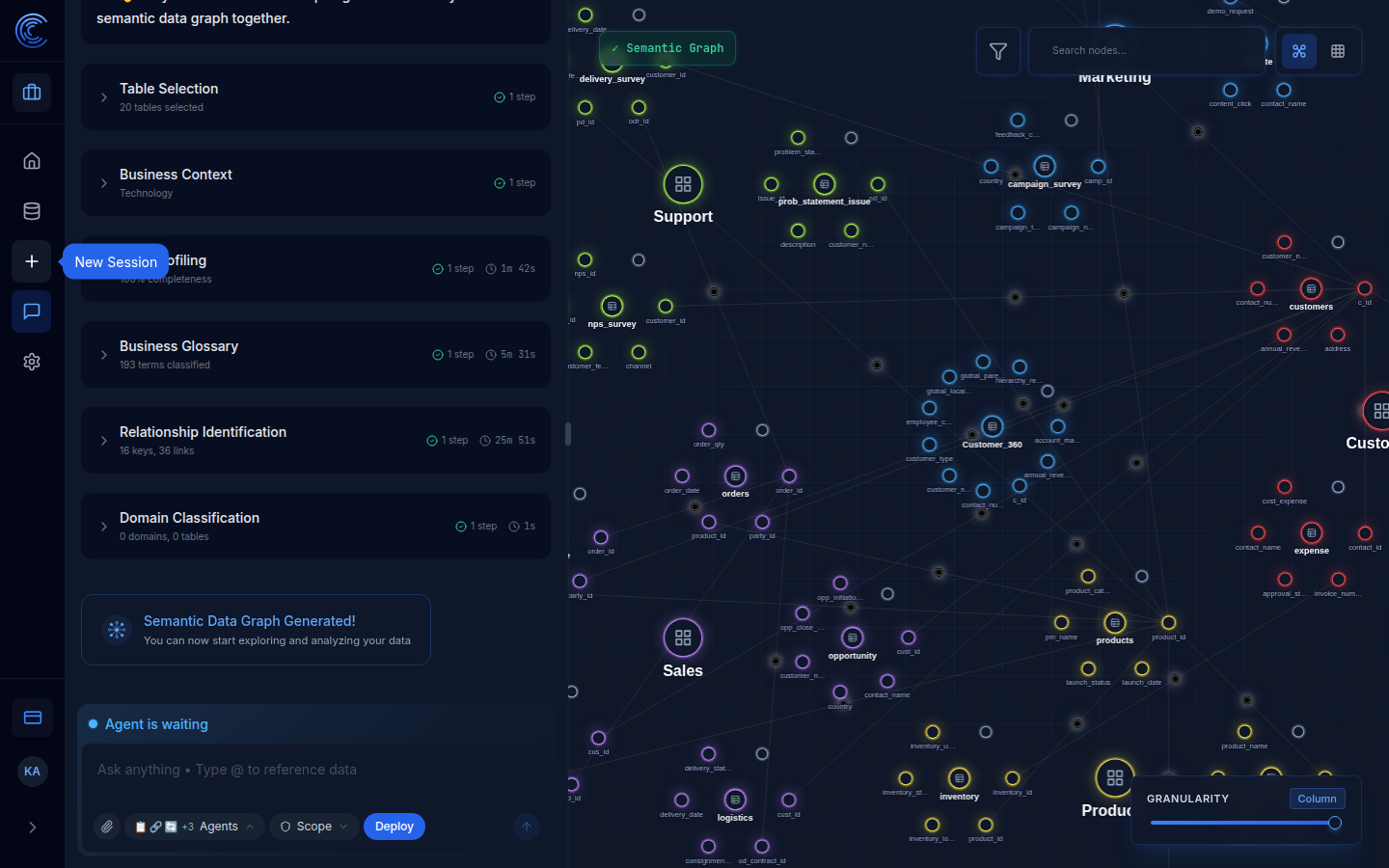
How to Start a New Session
- Click the
+icon in the left sidebar (labelled New Session on hover) - A blank session opens immediately — ready for your first question
- Type your question in the chat input and press Enter
What Happens When You Start a New Session
- A new unique session ID is created (e.g. #2209)
- The session inherits the currently active workspace and data sources
- The agents and scope settings from your last session are carried over by default
- You can adjust agents and scope before or after asking your first question
Session vs Homepage Chat
| Homepage Chat | New Session (+) | |
|---|---|---|
| Creates a new session | Yes | Yes |
| Shows Deployed Apps panel | Yes | No |
| Shows Recent Sessions panel | Yes | No |
| Faster to start | No | Yes |
Tip: Use New Session when you want to start a fresh conversation quickly without navigating back to the Homepage.
After the Session Opens
Once the session is open, the interface is the same as the Homepage chat input:
- Type
@to reference a specific data table - Use the Agents button to toggle which AI agents are active
- Use the Scope button to limit which data domains are searched
- Attach a file using the paperclip icon
- Submit with Enter or the ↑ send button
All sessions are automatically saved and appear in the Sessions page.
Response Feedback & Actions
After the AI generates a response to your question, you'll see several options to provide feedback, request corrections, or cache the response for faster future access.
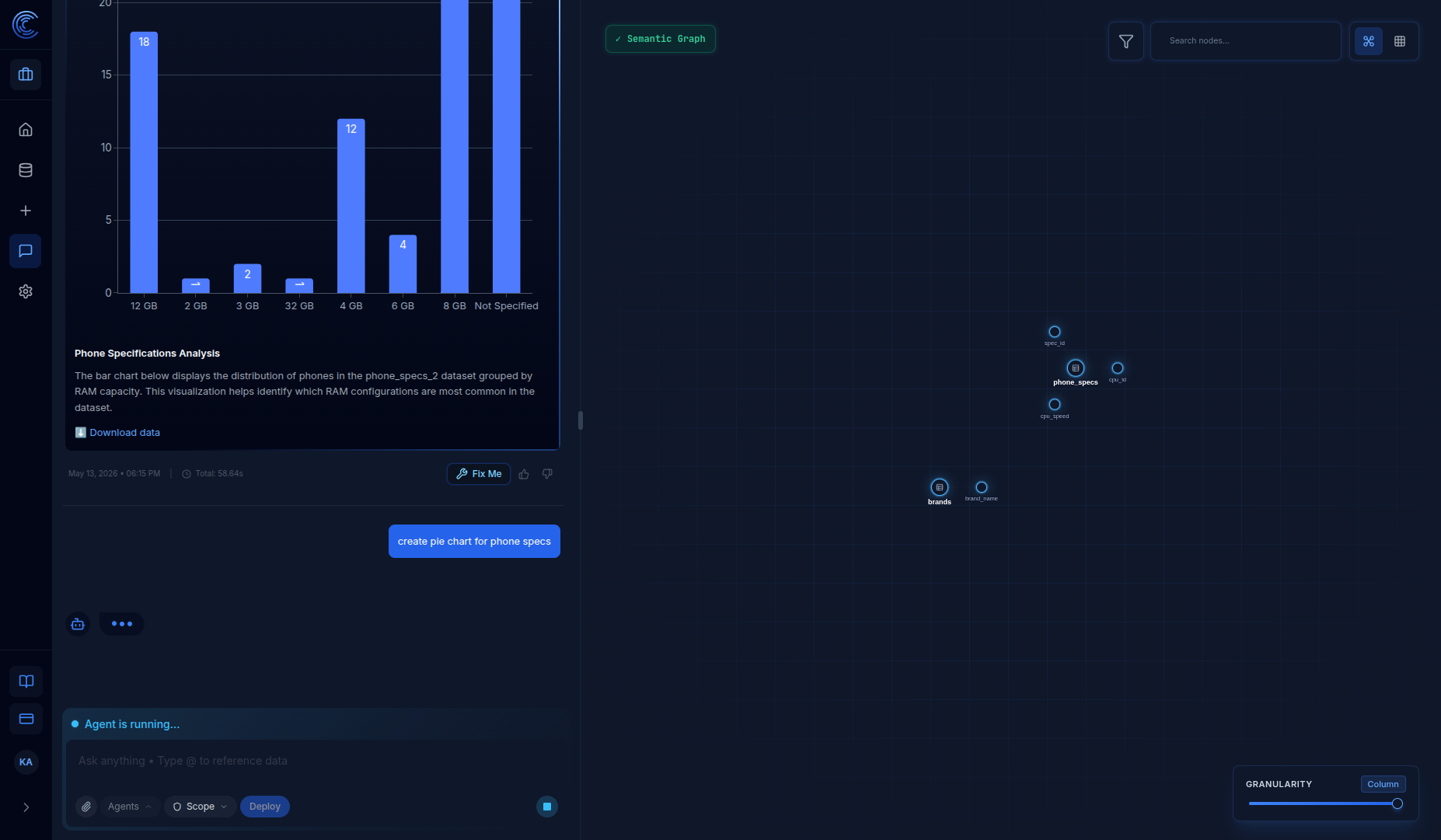
Response Actions Bar
Below each AI response, you'll find:
| Element | Description |
|---|---|
| Timestamp | Shows when the response was generated (e.g., "May 13, 2026 • 06:15 PM") |
| Total Time | Execution time for the entire query (e.g., "Total: 58.64s") |
| Fix Me | Request the AI to correct or improve its response |
| Thumbs Up | Mark the response as helpful/accurate |
| Thumbs Down | Mark the response as unhelpful/inaccurate |
Fix Me Button
The Fix Me button allows you to request corrections when the AI response isn't quite right:
- Click the Fix Me button below any response
- The AI will attempt to regenerate or correct the response
- You can provide additional context to guide the correction
When to use Fix Me:
- The SQL query returned incorrect results
- The chart visualization needs adjustment
- The AI misunderstood your question
- You want a different format or analysis approach
Providing Feedback
Cache Preference (Optional)
You can choose to cache the response for faster retrieval in the future:
| Option | Description |
|---|---|
| Full Cache | All results cached, instant playback on similar questions |
| Partial Cache | Some results cached, faster response time |
Click Save Cache after selecting your preference.
Feedback Comment
Use the text box labelled "How can we improve this response?" to:
- Explain what was wrong with the response
- Suggest improvements
- Provide context the AI might have missed
After typing your feedback, click the thumbs up or thumbs down icon next to the text box to submit.
Why Feedback Matters
Your feedback helps improve Intugle's AI:
- Thumbs up signals the AI handled this type of query well
- Thumbs down with comments helps identify areas for improvement
- Feedback is used to refine prompts and few-shot examples
- Cached responses ensure consistent answers across users