Page 6 — Profile & Settings
The Profile & Settings page is where you manage your personal account details, preferences, and security options.
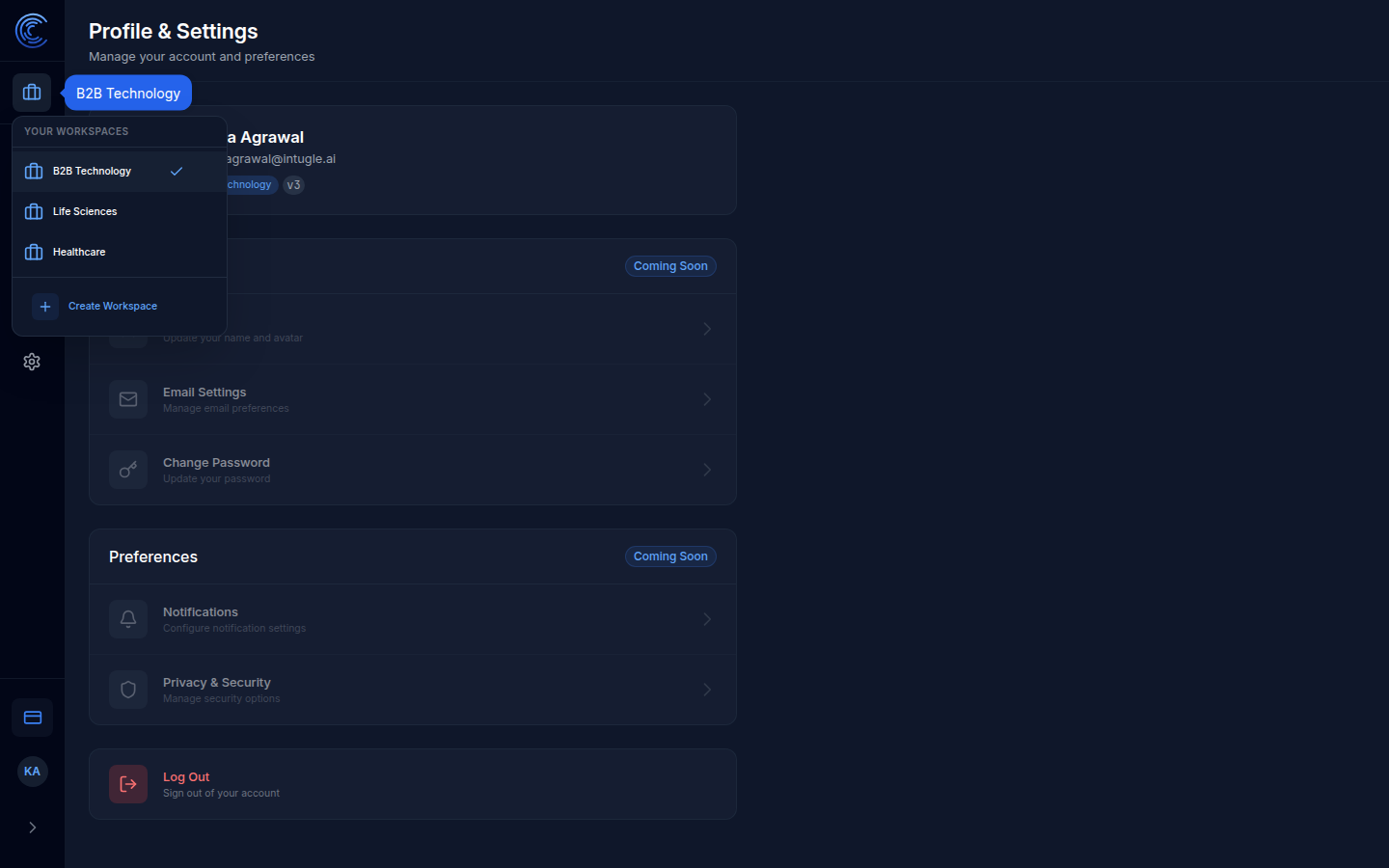
Account Information
At the top of the page, your account details are displayed:
| Field | Value |
|---|---|
| Name | Kritika Agrawal |
| kritika.agrawal@intugle.ai | |
| Workspace | B2B Technology |
| Plan | v3 |
Account Settings
This section lets you update your personal account information. Settings marked Coming Soon are not yet available.
| Setting | Description | Status |
|---|---|---|
| Personal Information | Update your name and avatar | Coming Soon |
| Email Settings | Manage email notification preferences | Available |
| Change Password | Update your account password | Available |
How to Change Your Password
- Click Change Password
- Enter your current password
- Enter and confirm your new password
- Click Save
How to Update Email Settings
- Click Email Settings
- Toggle notifications on or off as preferred
- Save your changes
Preferences
Settings in this section control your platform experience. Currently marked Coming Soon.
| Setting | Description |
|---|---|
| Notifications | Configure how and when you receive platform alerts |
| Privacy & Security | Manage security options and data privacy preferences |
Workspaces
From the Profile page (and from anywhere via the workspace switcher) you can see and manage all workspaces you have access to:
| Workspace | Description |
|---|---|
| B2B Technology ✓ | Currently active workspace |
| Life Sciences | Switch to this workspace |
| Healthcare | Switch to this workspace |
| + Create Workspace | Add a new workspace |
To switch workspaces, click the workspace name from the switcher dropdown. All data, apps, sessions, and agent configurations are workspace-specific.
Log Out
At the bottom of the Profile & Settings page, click Log Out to sign out of your Intugle account.
Your sessions and work are automatically saved — you will not lose any data when logging out.
Logging out ends your current session. Make sure any ongoing analysis is complete before signing out.