Page 5 — Prompt Flow & Agents
The Prompt Flow page is the control center for customizing how Intugle's AI agents think, reason, and respond to your questions. This is where you fine-tune the AI to understand your specific business context, terminology, and data.
To edit prompts, concepts, few-shots, and metadata, you must enable the Admin toggle (top-right corner). Without it, you can view but not modify configurations.
Understanding the Prompt Flow System
When you ask Intugle a question, here's what happens behind the scenes:
┌─────────────────────────────────────────────────────────────────────┐
│                        YOUR QUESTION                                 │
│              "What were our top products last quarter?"              │
└─────────────────────────────────────────────────────────────────────┘
                                  │
                                  ▼
┌─────────────────────────────────────────────────────────────────────┐
│                    ORCHESTRATION AGENT                               │
│  • Reads your question                                               │
│  • Checks Universal Instructions (global rules)                      │
│  • Decides which specialist agent(s) to call                         │
└─────────────────────────────────────────────────────────────────────┘
                                  │
                    ┌─────────────┼─────────────┐
                    ▼             ▼             ▼
           ┌───────────┐  ┌───────────┐  ┌───────────┐
           │ MetaData  │  │   Data    │  │ Semantic  │
           │ Analysis  │  │ Analysis  │  │   Graph   │
           └───────────┘  └───────────┘  └───────────┘
                    │             │             │
                    └─────────────┼─────────────┘
                                  ▼
┌─────────────────────────────────────────────────────────────────────┐
│                    AI REFERENCES:                                    │
│  • Analytics Catalog → Business concept definitions                  │
│  • Few-Shots → Example Q&A pairs for similar questions               │
│  • Metadata → Table/column descriptions and relationships            │
└─────────────────────────────────────────────────────────────────────┘
                                  │
                                  ▼
┌─────────────────────────────────────────────────────────────────────┐
│                        YOUR ANSWER                                   │
│  "Based on your sales data, the top 5 products by revenue were..."   │
└─────────────────────────────────────────────────────────────────────┘
Page Layout
The page has eight tabs in the left navigation panel:
| Tab | Purpose |
|---|---|
| Agent Configurator | Edit the prompts that control how each AI agent behaves |
| Few-Shots | Create example Q&A pairs to train the AI |
| Concepts | Define business concepts and metric formulas (formerly Analytics Catalog) |
| Metadata | View and edit table/column descriptions with Use Case Summary |
| Cache | View and manage cached questions for faster responses |
| Memory | Configure Universal Instructions that apply globally |
| Jobs | (Coming Soon) Manage scheduled jobs |
| Observability | Monitor and analyze AI agent interactions |
Global Controls (Top-Right)
| Control | What It Does |
|---|---|
| Subscription toggle | Switch between subscription views |
| Admin toggle | Enable edit mode for all configurations |
| + Add LLM Model | Connect additional AI models (GPT-4, Claude, Gemini, etc.) |
Tab 1 — Agent Configurator
The Agent Configurator lets you customize the system prompts that control how each AI agent processes your questions.
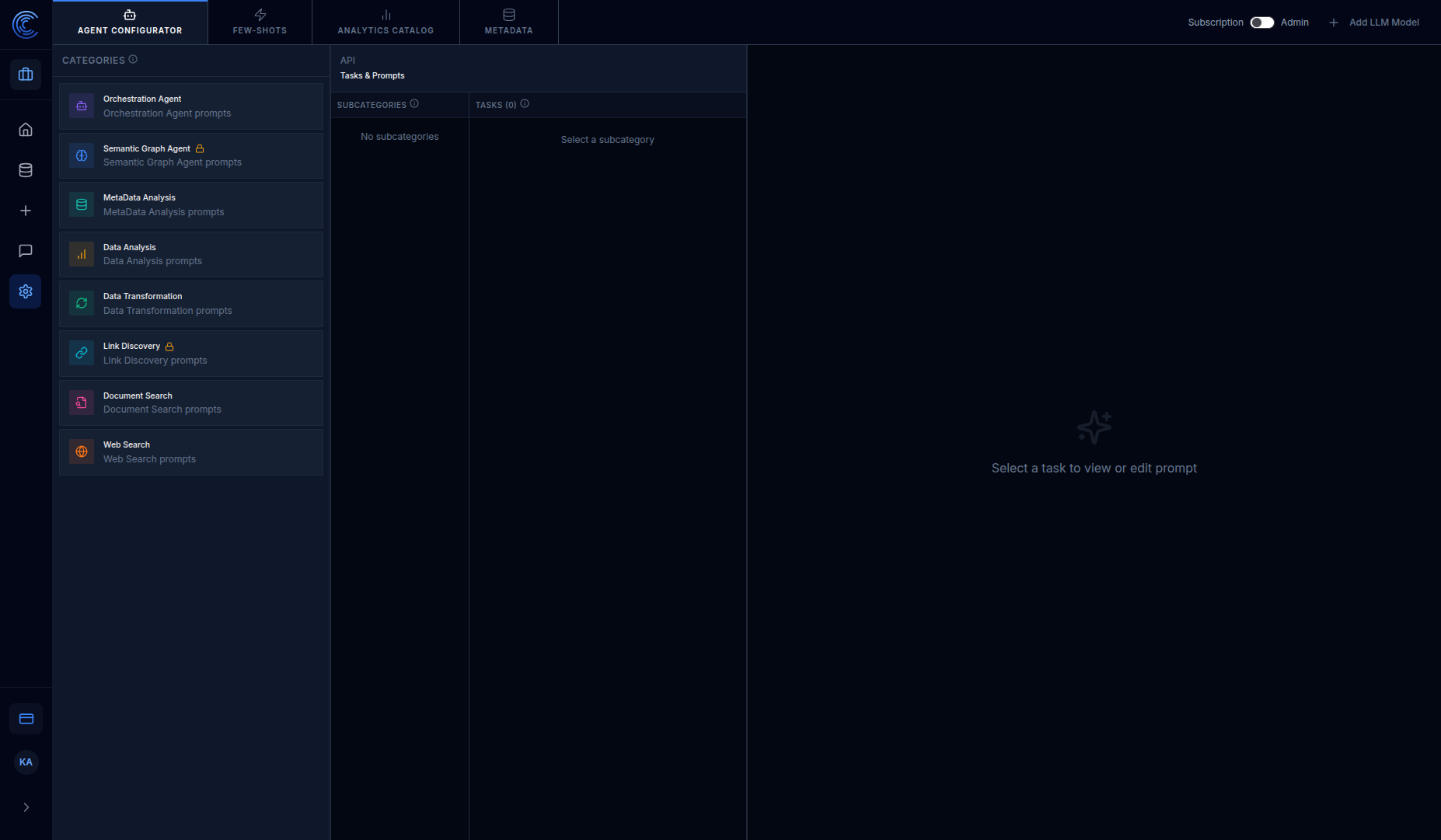
Three-Panel Layout
| Panel | What It Shows |
|---|---|
| Left: Categories | List of all AI agent types |
| Center: Subcategories & Tasks | The specific tasks within each agent |
| Right: Prompt Editor | View/edit the actual prompt text |
Agent Categories Explained
Each agent is a specialist that handles a specific type of task:
| Agent | Role | When It's Called |
|---|---|---|
| Orchestration Agent | The "manager" — decides which specialist to call | Every question goes through this first |
| Semantic Graph Agent | Navigates table relationships | When questions involve multiple related tables |
| MetaData Analysis | Understands table structure | When the AI needs to know what columns exist |
| Data Analysis | Writes and runs SQL queries | When you ask for specific data or metrics |
| Data Transformation | Cleans and reshapes data | When data needs formatting or aggregation |
| Link Discovery | Finds hidden relationships | When discovering new table connections |
| Document Search | Searches uploaded documents | When questions relate to PDFs, Word docs, etc. |
| Web Search | Searches the internet | When contextual web information is needed |
How to Edit an Agent Prompt
- Click an agent category (left panel)
- Select a subcategory (center panel)
- Choose a task (center panel)
- Edit the prompt in the Prompt Editor (right panel)
- Click Save — changes take effect immediately
Tab 2 — Few-Shots
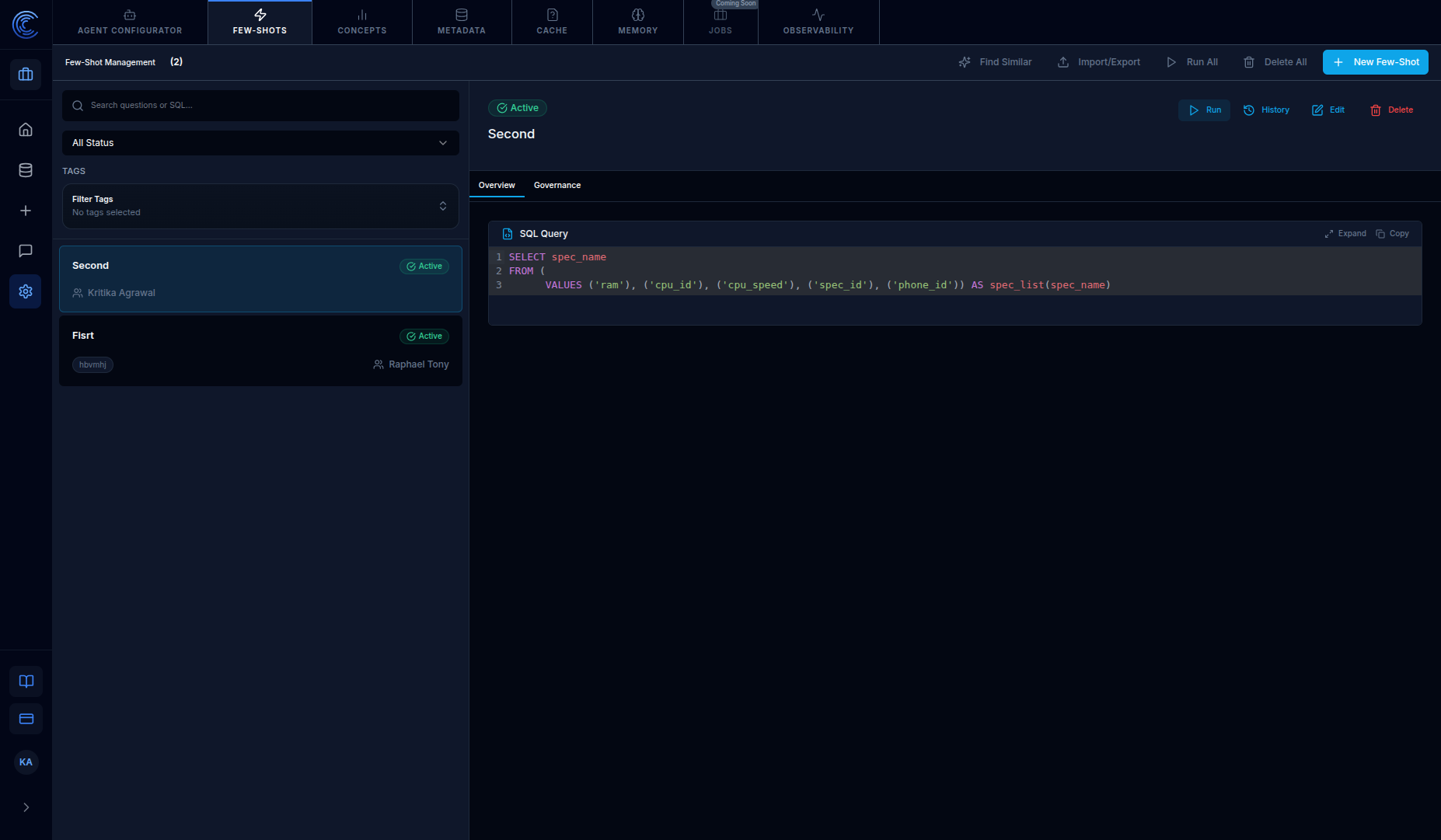
Few-Shots are example question-and-answer pairs that teach the AI how to handle specific types of queries for your business.
Why Few-Shots Matter
Without few-shots, the AI might:
- Use the wrong table for a query
- Misunderstand business terminology
- Calculate metrics incorrectly
With few-shots, you show the AI: "When someone asks THIS, here's exactly how to answer."
Few-Shot Card Details
Each card shows:
| Field | Description |
|---|---|
| Name | Descriptive title (e.g., "Customer 360 Query") |
| Status | 🟢 Active (AI uses it) or 🔴 Inactive (disabled) |
| Table Tags | Which data tables this example references |
| Created By | Who authored this few-shot |
Top-Right Actions
| Button | What It Does |
|---|---|
| Find Similar | Identifies duplicate or overlapping few-shots |
| Import/Export | Bulk import/export few-shots as JSON or CSV |
| Run All | Tests all active few-shots to verify they still work |
| + New Few-Shot | Create a new example Q&A pair |
Creating a New Few-Shot
- Click + New Few-Shot
- Enter a question — the type of query users might ask
- Enter the ideal answer or SQL query the AI should generate
- Select which tables are involved
- Set status to Active
- Click Save
Tab 3 — Concepts (Analytics Concepts)
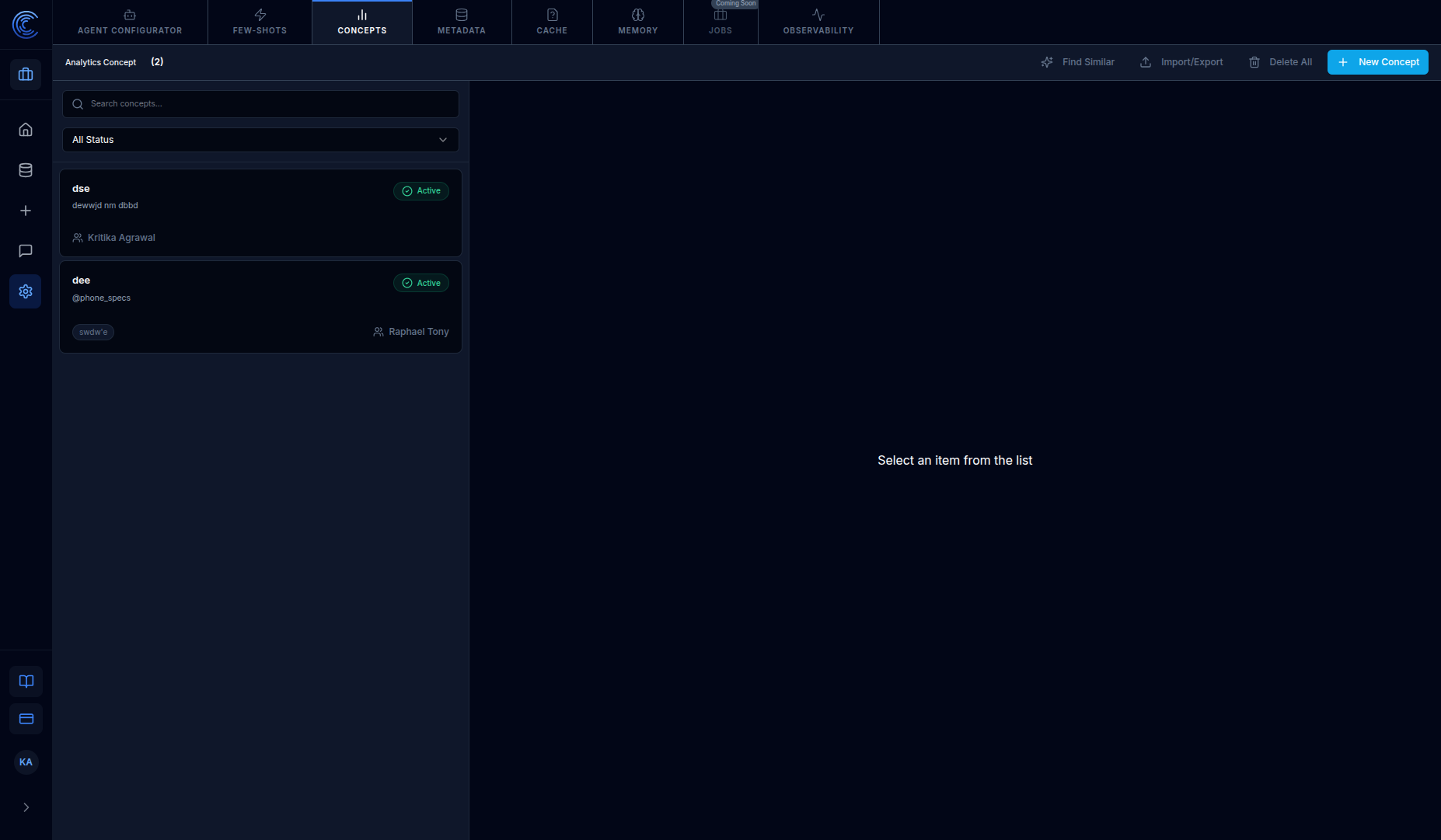
The Concepts tab (formerly Analytics Catalog) is a library of business concepts and metric definitions that the AI references when answering questions.
What is a Concept?
A concept is a business term with a defined meaning. For example:
| Concept Name | Definition |
|---|---|
| Customer Churn | "Customers who cancelled their subscription in the last 30 days, calculated as cancelled / total active" |
| Net Revenue Retention | "Revenue from existing customers this period / revenue from same customers last period × 100" |
| Top Products | "Products ranked by total order value, excluding returns and refunds" |
Why Concepts Matter
Without concepts, asking "What's our churn rate?" might give inconsistent results because the AI doesn't know YOUR specific definition. With a concept, it always uses your formula.
Top-Right Actions
| Button | What It Does |
|---|---|
| Find Similar | Find duplicate or overlapping concepts |
| Import/Export | Bulk import/export concepts |
| Delete All | Remove all concepts |
| + New Concept | Create a new business concept definition |
Creating a New Concept
- Click + New Concept
- Enter a concept name (e.g., "Monthly Active Users")
- Write a description explaining what this metric means and how to calculate it
- Set status to Active
- Click Save
Tab 4 — Metadata
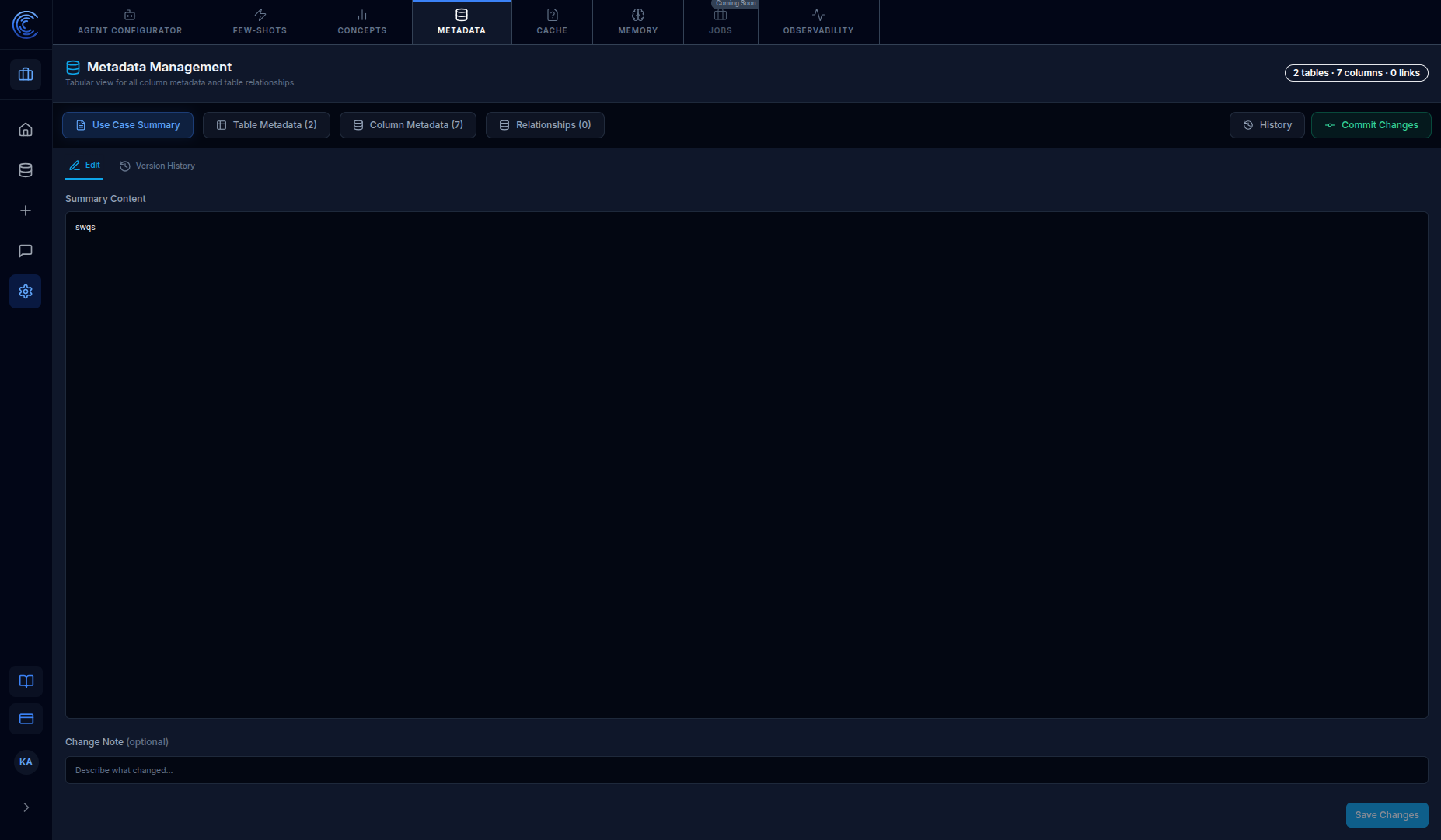
The Metadata tab provides a tabular view of all your data tables, columns, relationships, and descriptions. It now includes the Use Case Summary feature for documenting your data context.
Page Header Summary
Metadata Management
Tabular view for all column metadata and table relationships
19 tables · 192 columns · 35 links
This tells you exactly how much data the AI has access to.
Four Sub-Tabs
| Sub-Tab | What It Shows |
|---|---|
| Use Case Summary | Document the overall use case and business context for your data |
| Table Metadata | All tables with domain, name, description, row/column counts |
| Column Metadata | Every column across all tables with types and descriptions |
| Relationships | Foreign-key links between tables |
Use Case Summary (New)
The Use Case Summary tab allows you to:
- Document the business context and purpose of your data
- Provide summary content that guides AI understanding
- Track version history of changes
- Add change notes for audit purposes
Version Control
- Edit Tab: Make changes to metadata
- Version History Tab: View historical changes and compare versions
- Commit Changes: Save changes with optional change notes
- History: View the complete change history
Table Metadata Columns
| Column | Description |
|---|---|
| Domain | Business domain (Marketing, Sales, Products, Support) |
| Table Name | The actual table name in your database |
| Glossary | AI-generated description of what the table contains |
| Table Type | Source = raw data table |
| Row Count | Number of rows |
| Column Count | Number of columns |
Top-Right Actions
| Button | What It Does |
|---|---|
| Use Case Summary | View/edit a summary of use cases across your data |
| Table Metadata | View and edit table-level metadata |
| Column Metadata | View and edit column-level metadata |
| Relationships | Manage table relationships and links |
| History | See change history of metadata edits |
| Commit Changes | Save and apply any edits you've made |
Editing Metadata
Click any cell to edit it directly:
- Edit Glossary descriptions to help the AI understand table contents
- Change Domain assignments to re-classify tables
Click Commit Changes (red button) after editing — changes are NOT saved automatically.
Tab 5 — Cache
The Cache feature stores previously asked questions and their responses for faster retrieval.
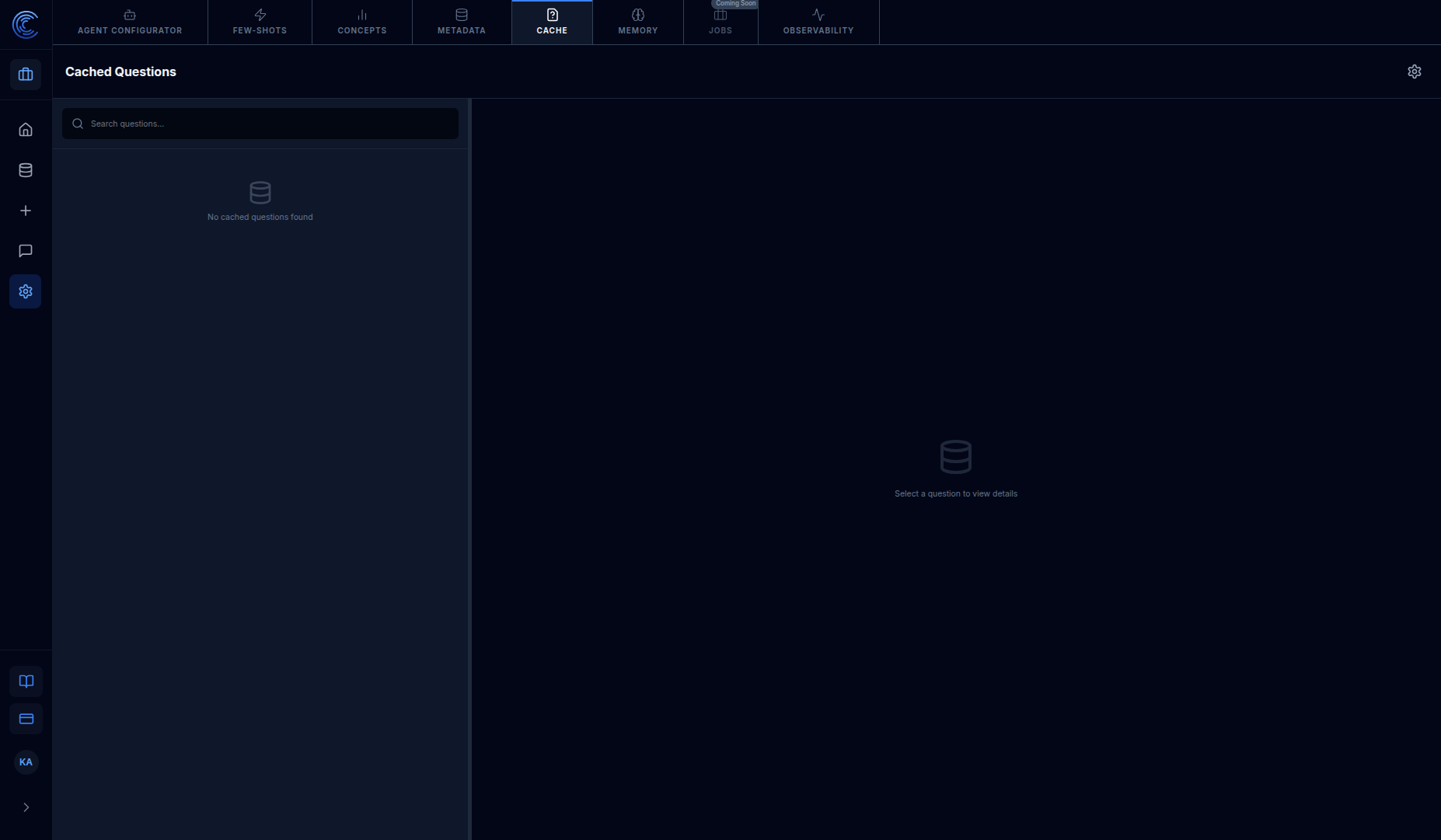
How Cache Works
- When a user asks a question, the system checks if a similar question exists in the cache
- If found, the cached response is returned immediately, reducing latency and LLM costs
- If not found, the question is processed normally and the result may be cached
Features
| Feature | Description |
|---|---|
| Search | Search through cached questions |
| View Details | Select a cached question to view its full response |
| Delete | Remove specific cached entries |
Benefits
- Faster Response Times: Cached questions return instantly without LLM processing
- Cost Reduction: Reduces LLM API calls for repeated or similar questions
- Consistency: Ensures consistent answers for the same questions across users
Use Cases
- High-frequency questions that don't change often
- Standard reports and metrics queries
- Common data lookups
Tab 6 — Memory (Universal Instructions)
The Memory tab contains Universal Instructions - global instructions that apply to all AI interactions for your subscription.
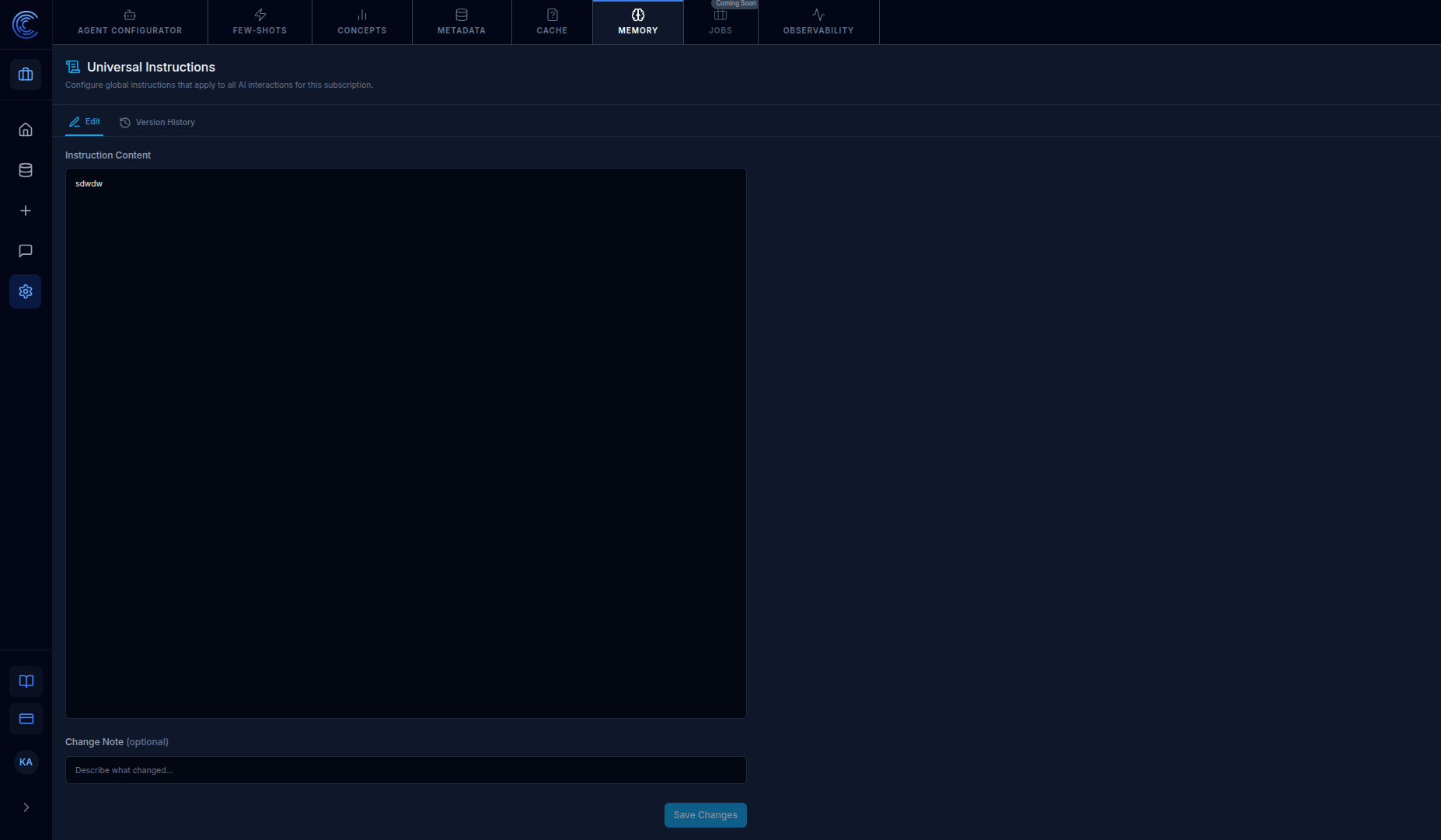
What are Universal Instructions?
Universal Instructions are global rules and guidelines that the AI follows for every query, regardless of which agent processes it. Think of them as "always-on" directives.
Examples of Universal Instructions
| Instruction Type | Example |
|---|---|
| Currency | "Always report currency values in USD unless otherwise specified" |
| Date Format | "Use fiscal year starting April 1 for all yearly calculations" |
| Terminology | "When referring to 'customers', include only active accounts" |
| Formatting | "Round all percentages to 2 decimal places" |
| Compliance | "Never display personally identifiable information (PII)" |
Features
| Field | Description |
|---|---|
| Instruction Content | The actual text of your universal instructions |
| Change Note | Optional description of what you changed (for audit trail) |
| Edit Tab | Modify the current instructions |
| Version History Tab | View and compare previous versions |
Best Practices
- Keep instructions concise and unambiguous
- Use bullet points for multiple rules
- Test changes with sample queries before deploying
- Document why changes were made using Change Notes
Tab 7 — Jobs (Coming Soon)
The Jobs tab will allow you to manage scheduled and batch processing jobs. This feature is currently under development.
Tab 8 — Observability
Observability provides comprehensive monitoring and analytics for all AI agent interactions.
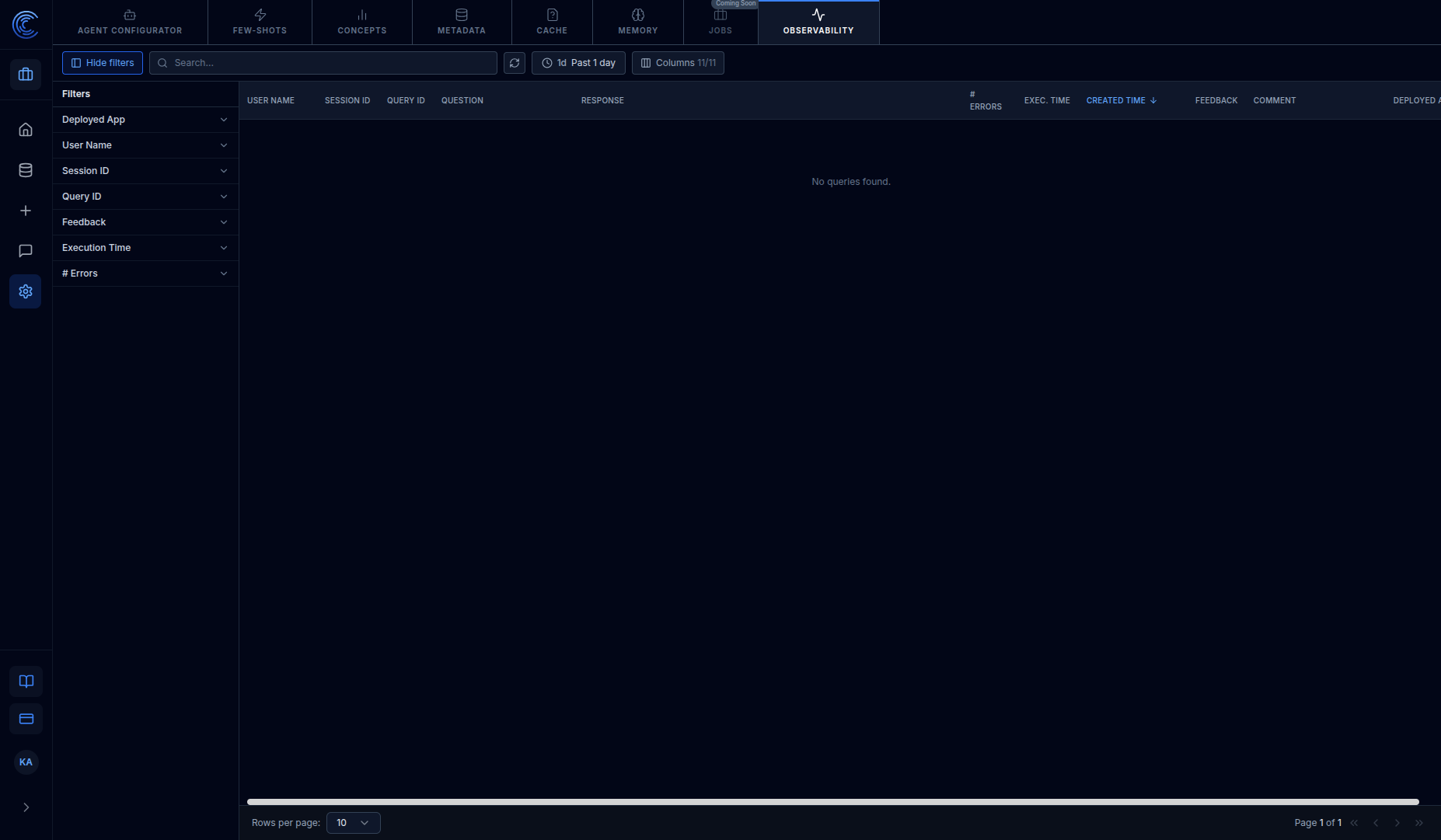
Overview
The Observability tab gives you full visibility into:
- What questions users are asking
- How the AI is responding
- Performance metrics (execution time, errors)
- User feedback on responses
Filters
You can filter the data by multiple criteria:
| Filter | Description |
|---|---|
| Deployed App | Filter by specific deployed applications |
| User Name | Filter by user who made the query |
| Session ID | Filter by specific session |
| Query ID | Filter by specific query |
| Feedback | Filter by user feedback (positive/negative) |
| Execution Time | Filter by response time |
| # Errors | Filter by error count |
| Time Range | View data for past 1 day, week, month, etc. |
Table Columns
| Column | Description |
|---|---|
| User Name | The user who made the query |
| Session ID | Unique session identifier |
| Query ID | Unique query identifier |
| Question | The question asked by the user |
| Response | The AI's response |
| # Errors | Number of errors encountered |
| Exec. Time | Execution time for the query |
| Created Time | When the query was made |
| Feedback | User feedback on the response |
| Comment | User comments on the response |
| Deployed App | The application where the query originated |
Top-Right Actions
| Button | What It Does |
|---|---|
| Hide/Show Filters | Toggle the filter panel visibility |
| Search | Search across all queries |
| Refresh | Refresh data in real-time |
| Time Range | Select time period (1d, 7d, 30d, etc.) |
| Columns | Show/hide columns (11 available) |
Use Cases
- Performance Monitoring: Track execution times and identify slow queries
- Error Analysis: Identify and debug queries that result in errors
- User Feedback Analysis: Understand which responses users find helpful or unhelpful
- Usage Analytics: Track which users and apps are most active
- Quality Assurance: Review AI responses for accuracy and relevance
- Compliance Auditing: Track all queries for regulatory requirements
How It All Works Together
Here's a complete example of how Prompt Flow components work together:
Scenario: User asks "What's our customer churn this quarter?"
- Orchestration Agent receives the question
- It checks Universal Instructions (Memory tab) for global rules
- The system first checks the Cache for similar previously-answered questions
- If not cached, it routes to MetaData Analysis to find relevant tables
- MetaData Analysis checks the Metadata tab (including Use Case Summary) and finds
customers,subscriptionstables - The system checks the Concepts tab and finds a "Customer Churn" concept definition
- It checks Few-Shots for similar questions that have been answered before
- Data Analysis agent writes a SQL query using:
- The concept definition (how to calculate churn)
- The metadata (which tables/columns to use)
- Any matching few-shot examples
- The query runs and returns results
- The answer is formatted and returned to the user
- The interaction is logged in Observability for monitoring and analysis
Best Practices
For Agent Prompts
- Keep prompts concise and specific
- Include examples of expected behavior
- Test changes with real questions before deploying
For Few-Shots
- Create few-shots for your most common questions
- Include variations of how users might ask the same thing
- Run "Run All" periodically to catch broken examples
- Use tags to organize few-shots by topic or domain
For Concepts
- Define ALL your key business metrics
- Be specific about calculation methods
- Include edge cases (e.g., "exclude returns from revenue calculations")
For Metadata
- Write clear, business-friendly descriptions for every table
- Keep descriptions up-to-date when schemas change
- Use consistent domain classifications
- Document the Use Case Summary to provide business context
For Cache
- Let frequently-asked questions build up naturally in the cache
- Monitor cache hit rates to understand effectiveness
- Clear outdated cache entries when underlying data changes
For Memory (Universal Instructions)
- Keep instructions concise and unambiguous
- Use version history to track changes over time
- Document changes with meaningful change notes
For Observability
- Review feedback regularly to identify improvement areas
- Monitor execution times to catch performance issues
- Use filters to focus on specific apps or user groups
- Export data periodically for trend analysis