Page 1 — Homepage
The Homepage is the central hub of Intugle. It is the first screen you see after logging in. From here you can ask questions about your data, browse your deployed apps, and review past conversations.
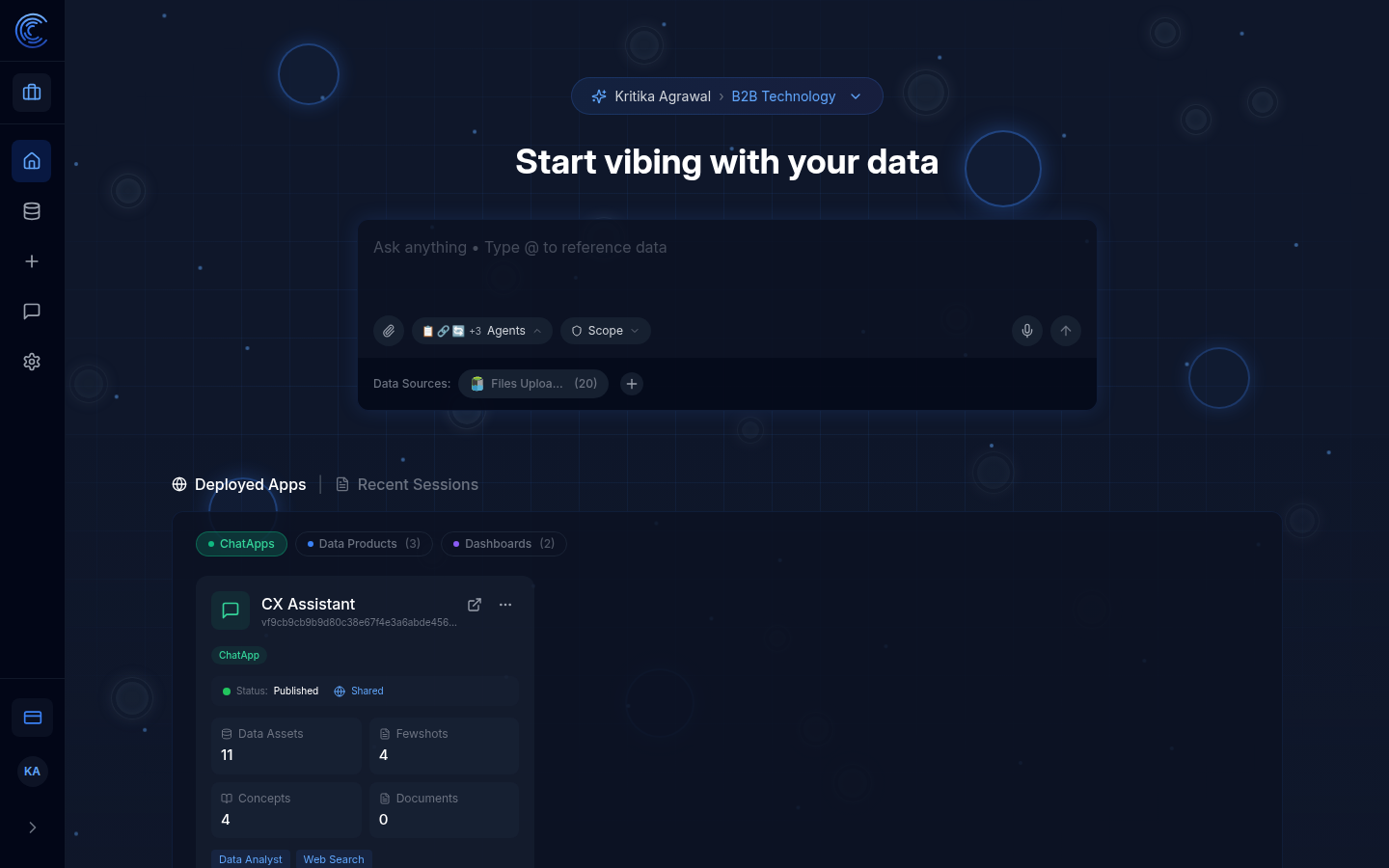
1. Left Sidebar Navigation
The sidebar runs along the left edge of every page. It gives you access to all sections of the platform at any time.

| Icon | Label | What It Does |
|---|---|---|
| Intugle logo (top) | Intugle | Click to return to the Homepage from anywhere |
| Building icon | Workspace | Shows the current workspace; click to switch |
| House icon | Home | Opens this Homepage |
| Database icon | Data Connections | Manage your connected data sources |
+ icon | New Session | Start a fresh AI chat session immediately |
| Chat bubble icon | Sessions | Browse all your past chat sessions |
| Gear icon | Prompt Flow / Agents | Agent configuration, prompts, and metadata |
| Card icon (bottom) | Credits | View your workspace credit balance |
| KA avatar | Profile | Your account and profile settings |
> arrow | Expand Sidebar | Expand the sidebar to show full labels |
Tip: Hover over any icon to see its name as a tooltip.
The sidebar icons do not have text labels by default. Click the > arrow at the bottom to expand the sidebar and see full labels.
2. Workspace Switcher

At the top-centre of the page you will see a pill-shaped button:
✦ Kritika Agrawal › B2B Technology ∨
- Kritika Agrawal — the logged-in user
- B2B Technology — the currently active Workspace
A workspace groups together all the data sources, agents, apps, and sessions for a specific project or team. Click this button to switch between workspaces or create a new one.
Workspace Dropdown
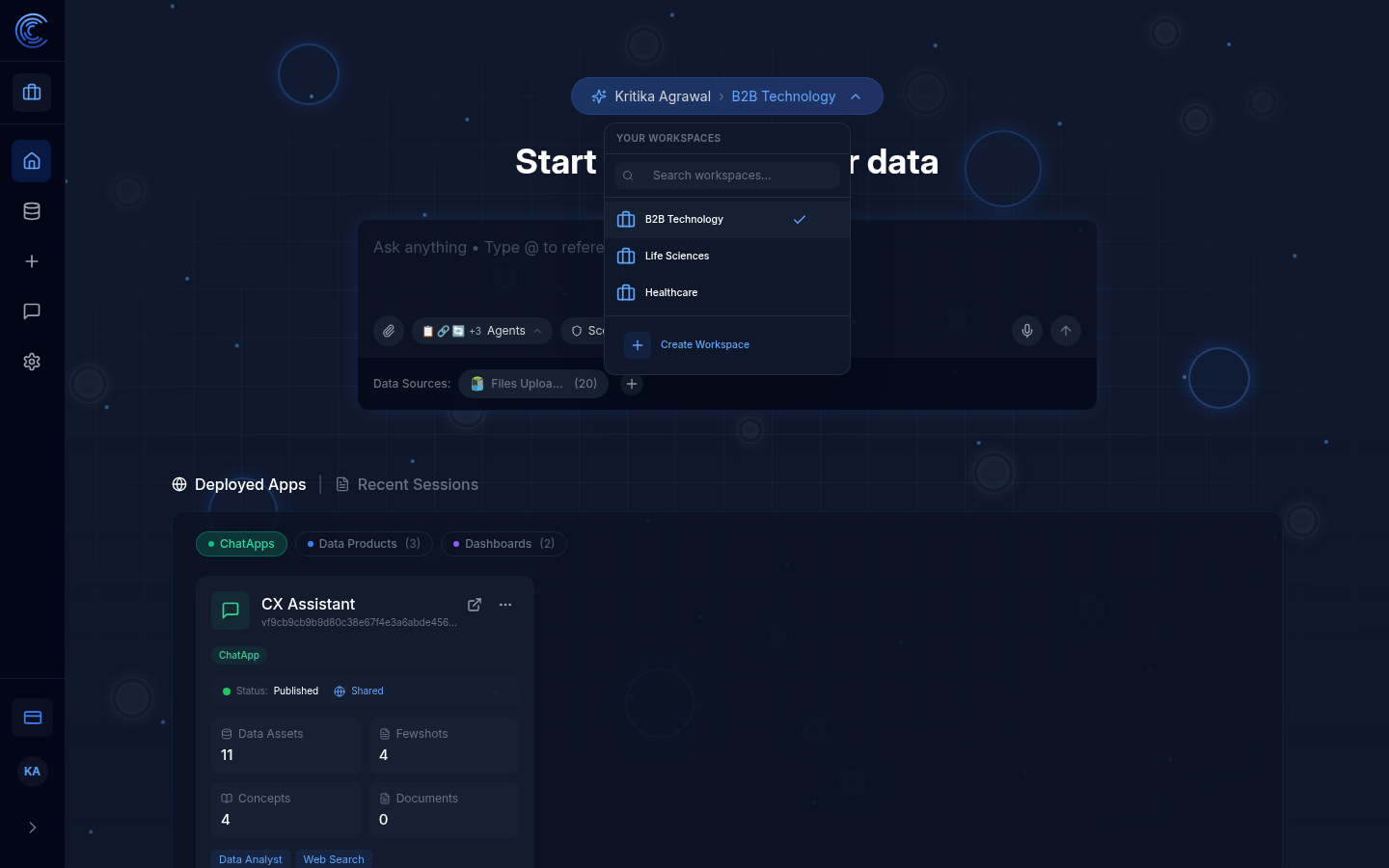
Clicking the workspace switcher button opens a dropdown with:
| Element | Description |
|---|---|
| Search workspaces... | Type to filter your workspace list by name |
| Your workspaces list | All workspaces you have access to — click any to switch |
| ✓ (tick) | Indicates the currently active workspace |
| + Create Workspace | Creates a brand new workspace from scratch |
How to Switch Workspaces
- Click the workspace switcher pill button at the top
- The dropdown appears showing all available workspaces
- Click the workspace you want to switch to
- The page reloads with that workspace's data, apps, and sessions
How to Create a New Workspace
- Click the workspace switcher pill button
- Click + Create Workspace at the bottom of the dropdown
- Enter a name for your new workspace
- The new workspace is created and you are switched to it automatically
3. Chat Input — "Start vibing with your data"
The large text box in the centre of the page is the core feature of the Homepage. Type any question about your business data here and Intugle will answer it using AI.
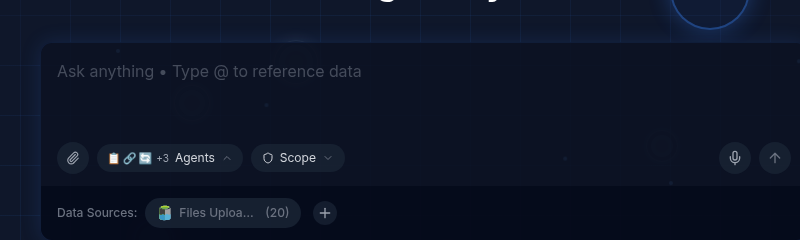
3a. Typing a Question
- Click inside the box labelled "Ask anything • Type @ to reference data"
- Type your question in plain English, for example:
- "What were the top 5 products sold last month?"
- "How many support tickets were raised by delivery staff this week?"
- "Summarise customer feedback from the last 30 days."
- Press Enter or click the ↑ send button on the right to submit
3b. Guided Prompts — Press / for Query Templates
Press / (forward slash) in the chat input to open the Guided Prompts menu — a collection of pre-built query templates for common data tasks.
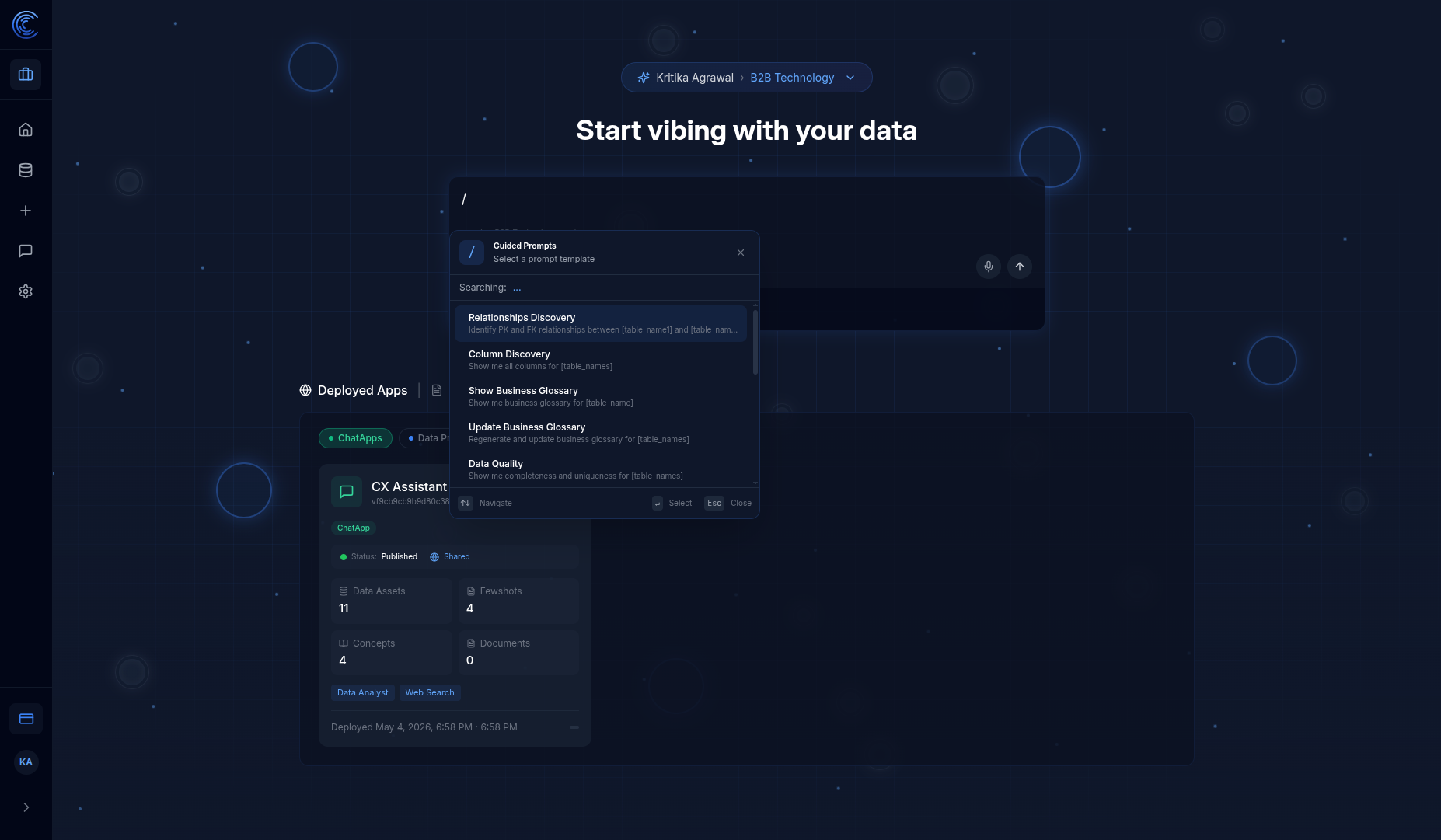
Available Guided Prompts
| Prompt | What It Does |
|---|---|
| Relationships Discovery | Identify Primary Key and Foreign Key relationships between tables |
| Column Discovery | Show all columns for specified tables |
| Show Business Glossary | Display business glossary definitions for a table |
| Update Business Glossary | Regenerate and update glossary definitions |
| Data Quality | Show completeness and uniqueness metrics for tables |
How to Use Guided Prompts
- Type
/in the chat input - The Guided Prompts menu appears with "Select a prompt template"
- Use ↑↓ arrow keys to navigate or type to search
- Press Enter to select a prompt
- The template fills into the chat with placeholders like
[table_name1]
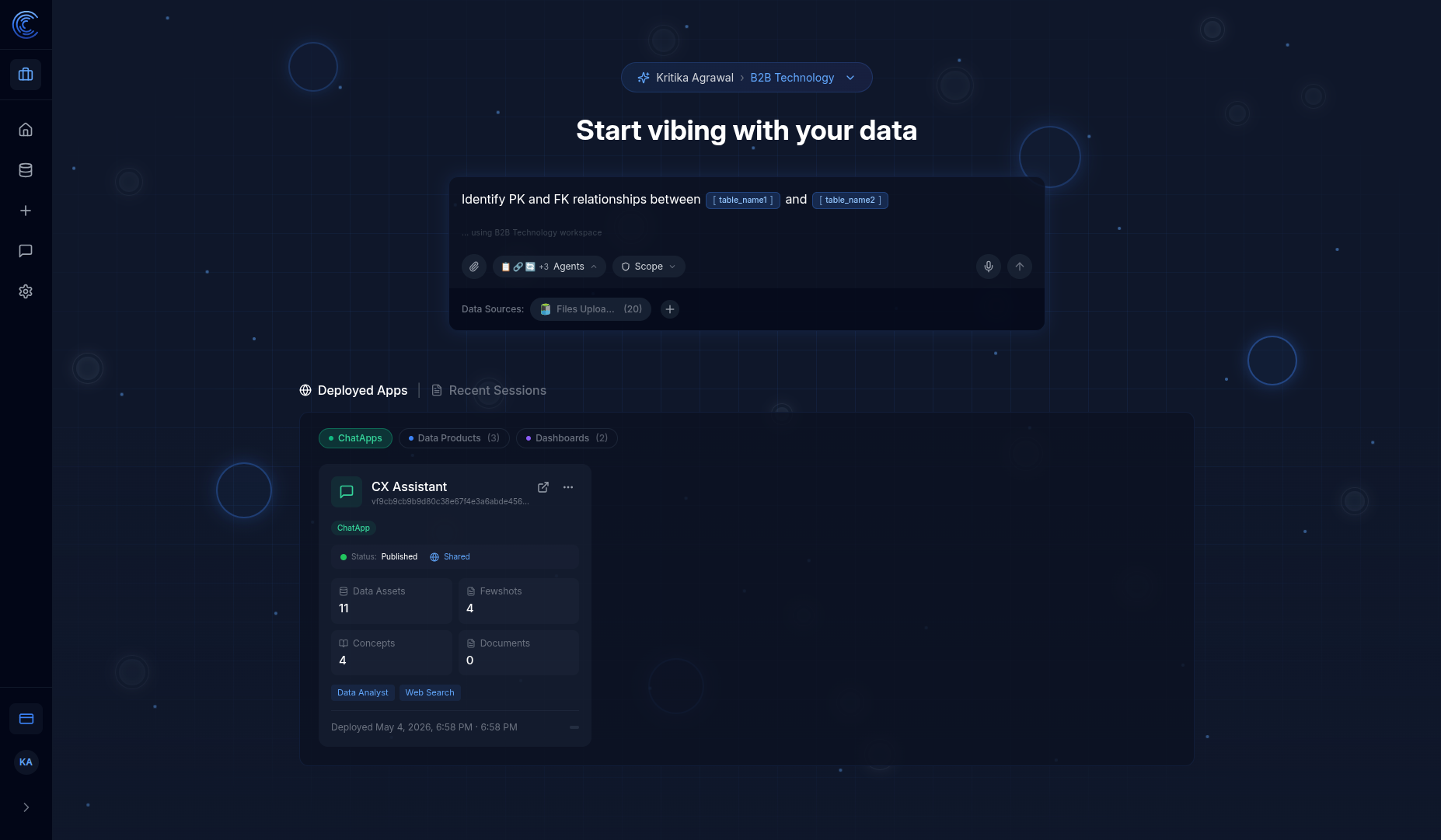
- Click on the placeholder tags (e.g.,
[table_name1]) to select your actual tables - Press Enter or click ↑ send to run the query
3c. Reference Data With @
Type @ anywhere in your question to open a picker and select a specific data table or file. This tells the AI exactly which dataset to use.
Example:
@Customer_360 how many customers churned this quarter?
3d. Attach a File
Click the paperclip icon (left of the toolbar) to upload a file — such as a CSV, PDF, or document — and include it as context for your question.
3e. Agents Button
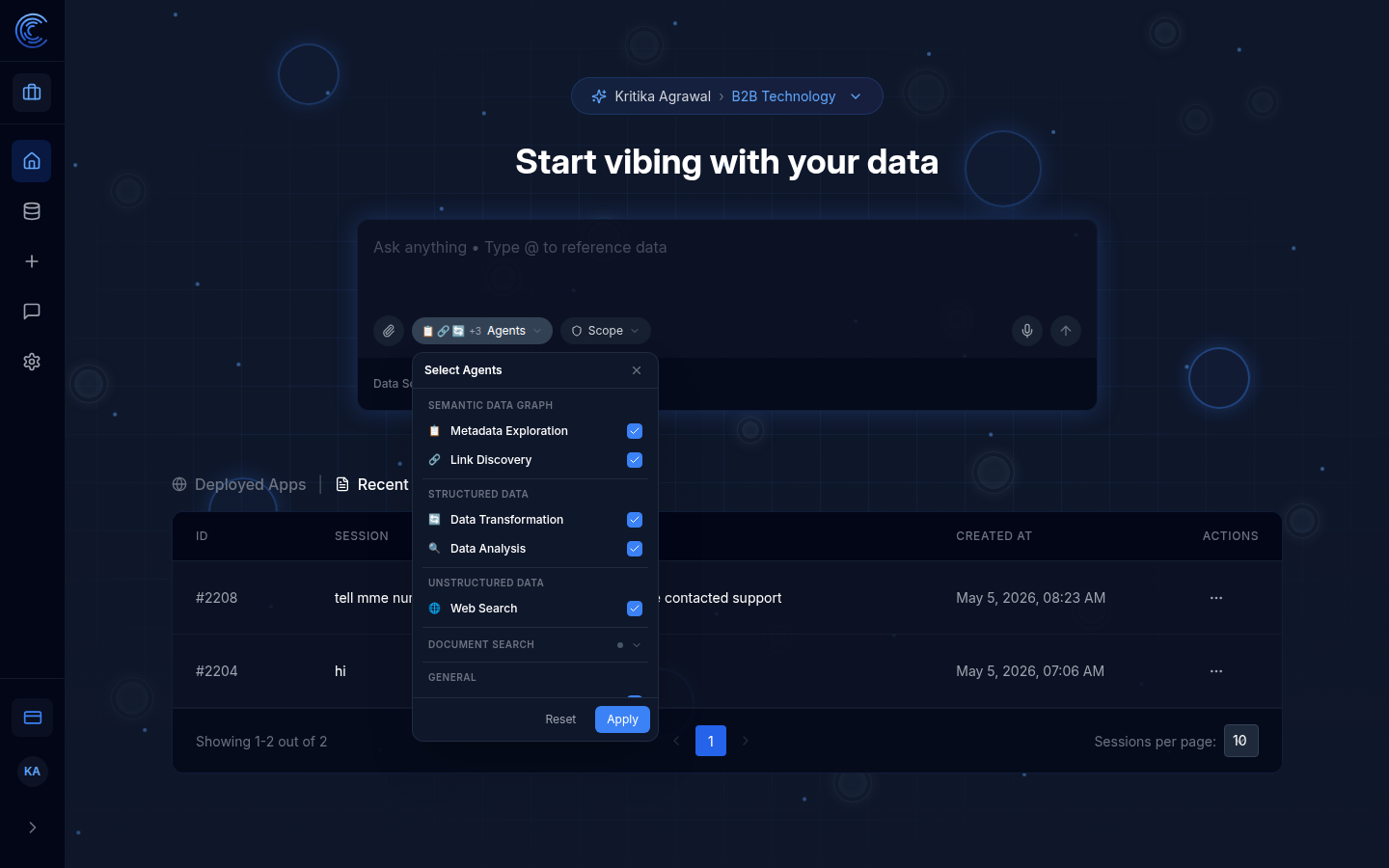
The Agents button shows which AI agents are currently active for your query. Agents are grouped into four categories:
| Category | Agents |
|---|---|
| Semantic Data Graph | Metadata Exploration, Link Discovery |
| Structured Data | Data Transformation, Data Analysis |
| Unstructured Data | Web Search |
| Document Search | (available based on plan) |
- Click the button to open the Select Agents panel
- Toggle individual agents on (blue tick) or off to control what types of analysis the AI performs
- Click Apply to confirm, or Reset to restore defaults
Example: Turn off Web Search to ensure the AI only uses your internal data.
3e. Scope Button
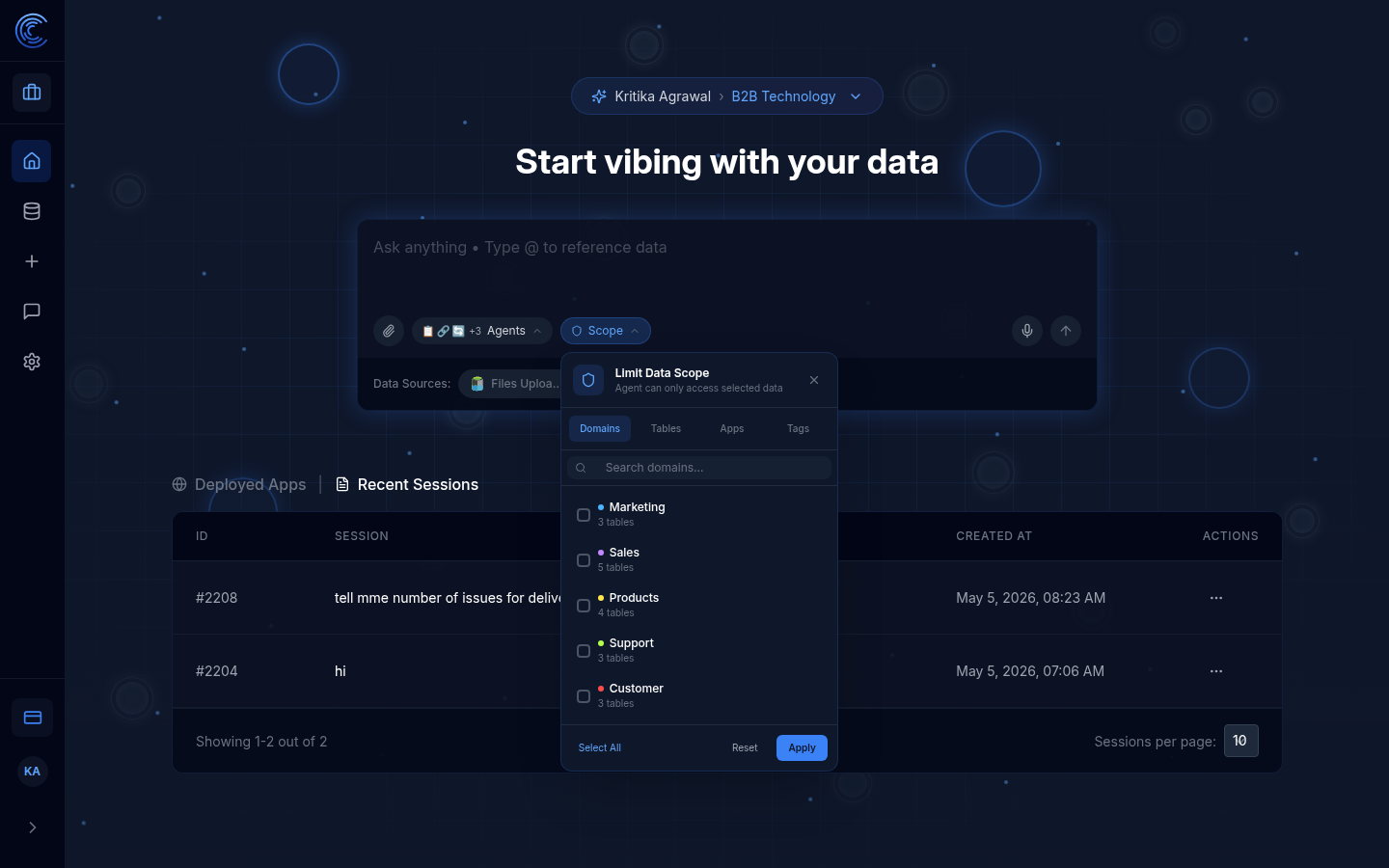
The Scope button lets you limit which data the AI can access for your query. This is useful when you want to focus on a specific domain or subset of data.
Scope can be filtered by:
| Tab | Description |
|---|---|
| Domains | Business domains such as Marketing, Sales, Products, Support, Customer |
| Tables | Individual data tables |
| Apps | Specific deployed apps |
| Tags | Custom tags applied to data |
- Check the domains or tables you want to include
- Click Apply to activate the scope
- Click Select All to include everything, or Reset to clear filters
3f. Voice Input
The microphone icon on the right of the toolbar allows you to speak your question instead of typing. If the icon is greyed out, grant microphone permission in your browser settings.
3g. Data Sources Bar
At the bottom of the chat box:
Data Sources: 📄 Files Uploaded (20) +
- Shows all currently connected data sources available to the AI
- Files Uploaded (20) — 20 files are uploaded to this workspace
- Click
+(Add new connection) to connect a database, API, or additional file source
4. Deployed Apps
Below the chat input is the Deployed Apps panel, which shows all apps that have been built and published from your workspace.
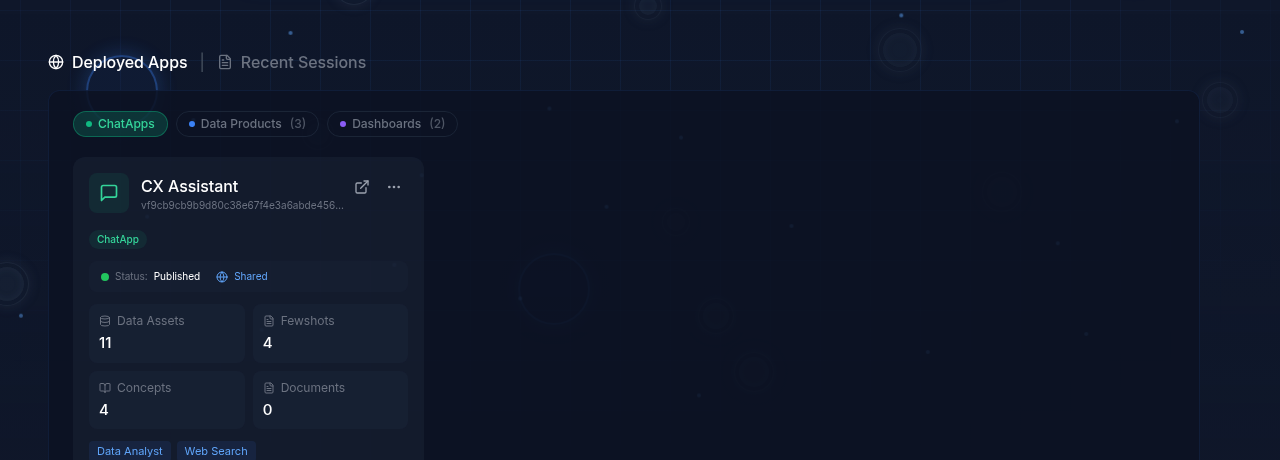
Switching Views
⊕ Deployed Apps | 📄 Recent Sessions
Click Deployed Apps to browse your published apps, or Recent Sessions to see your past conversations.
Filter Tabs
| Tab | What It Shows |
|---|---|
| ChatApps | Conversational AI apps for end-users |
| Data Products (3) | Structured data pipelines and processed datasets |
| Dashboards (2) | Visual dashboard apps with charts and metrics |
4a. ChatApps
Each ChatApp card displays:
| Field | Description |
|---|---|
| App name | Name of the ChatApp (e.g. CX Assistant) |
| Version ID | Unique identifier for this deployed version |
| Type badge | Confirms this is a ChatApp |
| Status | 🟢 Published = live and accessible |
| Sharing | Shared = other users can access this app |
| Data Assets | Number of data tables/files the app can query |
| Fewshots | Example Q&A pairs used to train response quality |
| Concepts | Business glossary terms linked to the app |
| Documents | Documents attached for reference |
| Capability tags | Which agents are enabled (e.g. Data Analyst, Web Search) |
| Deployed date | When the app was last published |
Actions on a ChatApp card:
| Action | How |
|---|---|
| Open the live app | Click the ↗ open in new tab icon |
| Edit / delete | Click the ⋯ three-dot menu |
| View details | Click anywhere on the card |
4b. Data Products
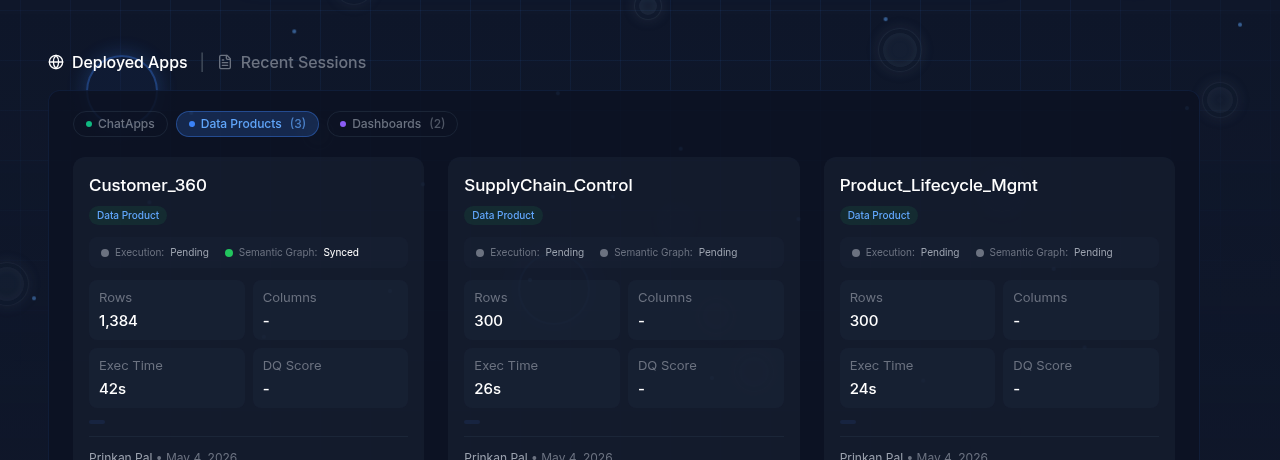
| Field | Description |
|---|---|
| Name | Product name (e.g. Customer_360, SupplyChain_Control) |
| Execution status | 🟢 Completed = pipeline ran successfully |
| Semantic Graph | Synced = metadata is up to date; Pending = still processing |
| Rows / Columns | Dimensions of the output dataset |
| Exec Time | How long the pipeline took to run |
| DQ Score | Data Quality score as a percentage |
| Created by | Who created the product and when |
4c. Dashboards
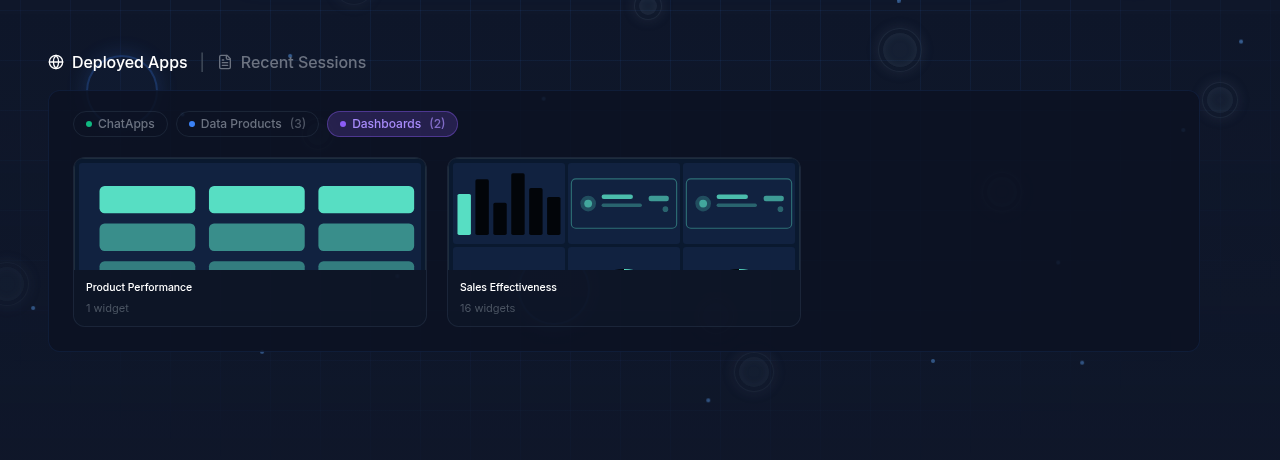
Each dashboard card shows a thumbnail preview of its layout, its name, and the number of widgets. Click a card to open the dashboard in full view.
5. Recent Sessions
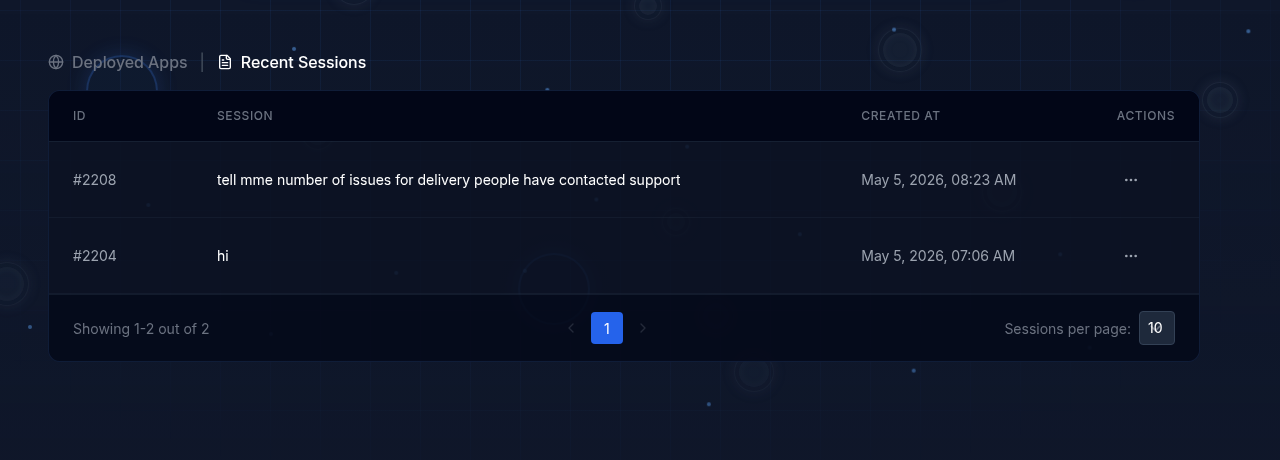
Click Recent Sessions to see a table of all your past chat conversations.
| Column | Description |
|---|---|
| ID | Unique session number (e.g. #2208) |
| Session | The first message or topic of that session |
| Created At | Date and time the session was started |
| Actions (⋯) | Options to resume, rename, or delete |
- Use the Sessions per page dropdown (bottom right, default: 10) to control how many rows are shown
- Use the pagination arrows to navigate through all sessions